Add Person to Photo
Use Somake's AI tool to seamlessly add anyone to your photos—even a passed away loved one. Get realistic, high-quality results in seconds. No skills needed.
How to Add a Person to Photo
Missed a friend in the group selfie? Want to add a deceased loved one to a wedding photo? Easily merge photos with AI. For a fully polished result, OmniPhoto Family Photos delivers studio-quality finishing on real portraits.
Step-by-Step Guide
1. Choose Your Model (Important!)
GPT Image 1.5 (10 Credits)
Best for: Quick Drafts & Testing. This is our most affordable model. Perfect for Free Trial users to test prompts and composition.
Nano Banana Pro (30 Credits)
Best for: Photorealism & High Quality. If you need the lighting and skin texture to look 100% real, switch to this premium model.
2. Upload Images
Drag and drop your images into the upload box. You need two images:
The Background image (the scene).
The Person image (the subject).
Note: The system automatically detects which is the person and which is the background.
3. Describe Placement & Action (Optional)
The AI already knows to "add the person." Use this box only to specify where they should be and what they are doing.
Do not write: "Add the person to the photo." (The system already does this).
Do write: "Standing on the left side next to the tree," or "Sitting on the sofa smiling."
4. Generate
Click the blue button to create your photo.
Not getting the perfect result?
"Add Person" is a complex task. If the automatic tool isn't giving you the control you need, try our specialized tools used by Pro users:
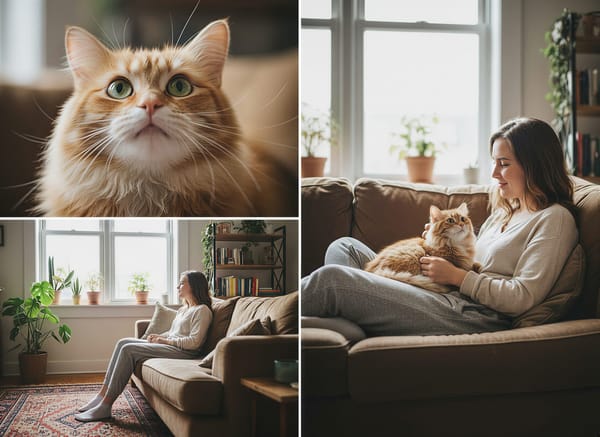
Need Total Control? (DIY Sandbox)
👉 Try Image to Image Generator
Why: This tool restricts you to just "adding a person." The Image to Image Generator lets you pick any model (like Flux Kontext or Seedream), adjust artist styles, and redraw specific areas.
Best for: Professional editors who want to fix hands, shadows, or specific details manually.
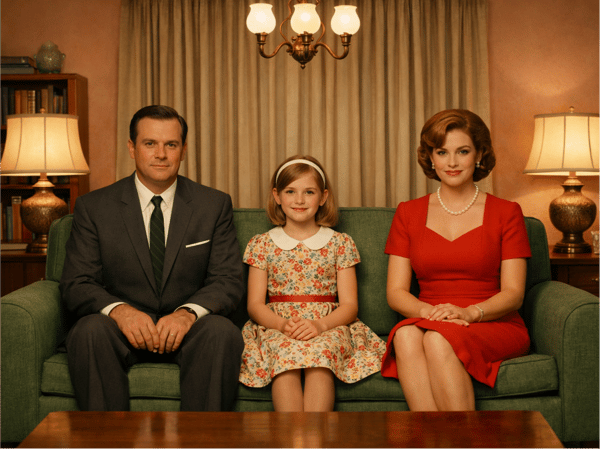
Making a Family Portrait?
👉 Try Family Portrait Maker
Why: Adding people one by one can distort faces. This tool is trained specifically to handle multiple faces while keeping their identities consistent.
Best for: Reunions, Memorials, and Holiday Cards.
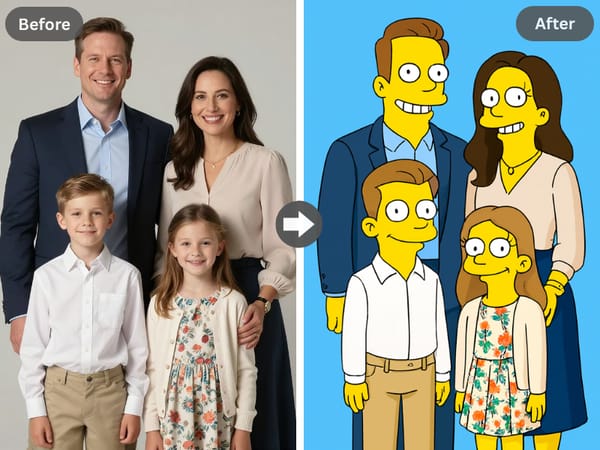
Just for Fun?
👉 Try Photo Filters
Why: If you want a cool artistic style instead of realism, this is our community's favorite creative tool.
Tips for Best Results
Lighting Match: The most common reason for a "fake" looking result is lighting. Try to select a photo of the person that matches the lighting of the background (e.g., don't mix a night scene with a bright daylight portrait).
Full Body Photos: If you want the person to appear standing in the background, ensure you upload a photo that shows their full body (or at least from the waist up).
Perspective: Ensure the camera angle is similar in both photos. Adding a person viewed from above into a background viewed from below will result in unnatural proportions.
Why Choose Us?
Easy to Get Started
Adding people within a few clicks—no difficult software and no creativity necessary in visual arts.
Hyper-realistic Result
The AI takes into consideration mood and perspective, and allows the new entrants to coalesce in the natural effect.
Unleash Creativity
Go past fixing photos and creat somewhat funny imaginative pictures for any occasion.